Custom data queries
If you need to fetch or modify data from a remote source (like databases or APIs), and existing integrations don’t cover your use case, you can register custom data queries. Custom data queries are essentially Javascript functions that you register in your codebase, which then become available in Plasmic Studio’s Data Queries section.
You can name, cache, and reuse query results across components on a page. The results are accessible via $q.myQueryName.
See this video for an example of how to register a custom data query and use it in Plasmic Studio:
Explore the full API reference for the registerFunction method here.
Example: database query
This example shows how to register a data query that fetches data from some abstract database and uses it in a Plasmic component.
// functions/dbQuery.ts'use server';import db from '@/lib/some-database-library'; // replace with your actual database library, or a fake one for demonstrationexport const dbQuery = async (filter?: object) => {let result;try {result = await db.find(args);} catch (error: unknown) {console.error('Error executing query:', error);return {error: `Error executing query ${error}`};}return result;};
Now let’s register this function in your custom app host:
// plasmic-init.tsimport { dbQuery } from '@/functions/dbQuery';PLASMIC.registerFunction(dbQuery, {name: 'dbQuery',isQuery: true,displayName: 'Database Query',description: 'Queries the database with the provided filters and returns sample data.',params: [{type: 'object',name: 'Filters',description: 'Filters to apply to the database query.'}]});
After registering the function, you can use it in Plasmic studio the same way as any other data query:
-
Go to the “Page Data” tab in the right sidebar, scroll down to the “Data Queries” section, and hit the plus button.
-
Click on the the newly added
query, change the name to something more meaningful, and select theDatabase Queryin the Custom Function field. Hit Execute to see the response preview. -
Click Save to save your changes. Now you can access the data returned by the function in any of your Plasmic components through the dynamic values:
Example: Using custom data query as interaction
Let’s assume you need to delete some data from your database when a user clicks a button. You can register an operation that performs the deletion and then use it as an interaction in Plasmic Studio.
// functions/deleteData.ts'use server';import db from '@/lib/some-database-library'; // replace with your actual database library, or a fake one for demonstrationexport const deleteData = async (id: string) => {try {await db.delete({ id });} catch (error: unknown) {console.error('Error deleting data:', error);return {error: `Error deleting data ${error}`};}return { success: true };};
Now let’s register this function in your custom app host:
// plasmic-init.tsimport { deleteData } from '@/functions/deleteData';PLASMIC.registerFunction(deleteData, {name: 'deleteData',isMutation: true,displayName: 'Delete Data',description: 'Deletes data from the database by ID.',params: [{type: 'string',name: 'ID',description: 'The ID of the data to delete.'}]});
After registering the function, you can use it in Plasmic studio like this:
- Go to the “Interactions” tab in the right sidebar, click on the button you want to add the interaction to, and hit the plus button in the “Interactions” section.
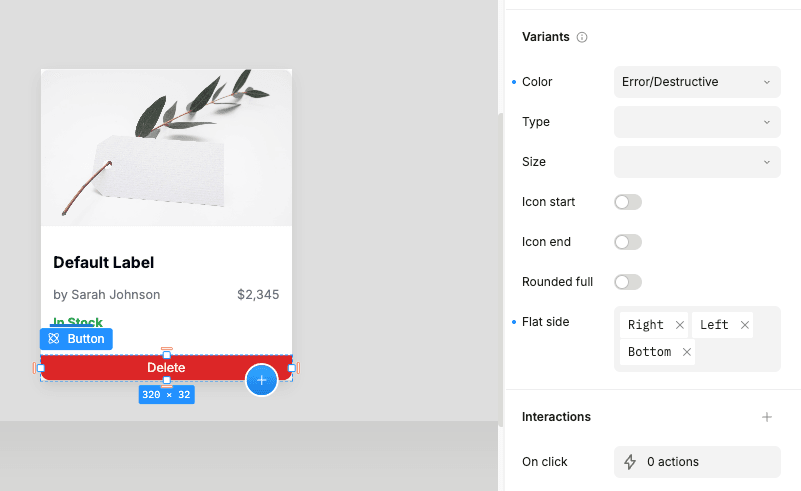
-
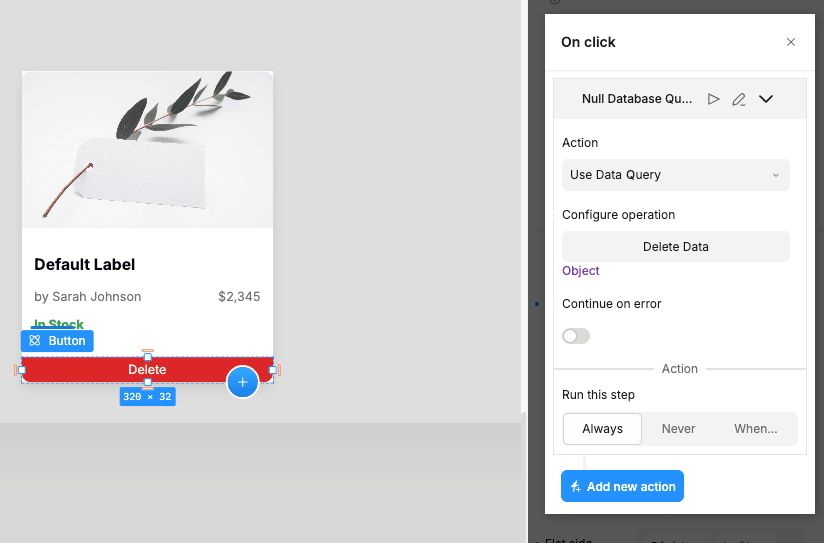
Click “Add new action” and select Use data query in the Action dropdown field.
-
Click Configure operation and select the
Delete Datafunction in the Custom Function field. Fill in the parameters and hit Save.
Example: Using fnContext to fetch data for function parameter fields
If you want to improve the user experience while building queries it would be a good idea to let your content editors choose from the table names and field names instead of typing them manually.
You can use the fnContext property to pre-fill the function parameters based on the current context.
Let’s say you have a database with multiple tables, and an SDK which can access them through the following format db.tableName.find, then our component will look something like this:
export const dbQuery = async (table: string, filters: object) => {return await db[table].find(filters);};
In order to register this function with the fnContext, you can declare your context like this:
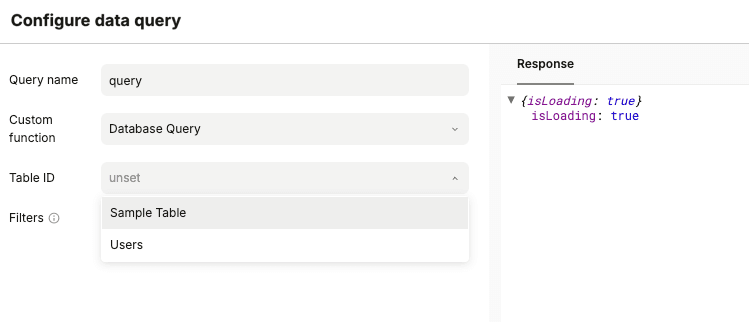
/** Function which will generate options for the `tableId` parameter* _args: [tableId, args] - the arguments currently passed to the function* ctx?: { tables: [{ identifier: tableId; name: tableDisplayName }] } - the context containing the list of tables**/function createTableOptions(_args: unknown[],ctx: { tables: Array<{ identifier: string; name: string }> } | undefined): Array<{ value: string; label: string }> {if (!ctx?.tables) {return [];}return ctx.tables.map((table: { identifier: string; name: string }) => ({value: table.identifier,label: table.name}));}/** Value of the `fnContext` parameter* dataKey - the key under which the data will be stored in the Plasmic data store to cache the result of the query* fetcher - a function that fetches the data about your DB from the server**/const tableFnContext = () => {return {dataKey: `database_tables`,fetcher: async () => {const tables = [{identifier: 'sample_table',name: 'Sample Table'},{identifier: 'users',name: 'Users'}];return { tables };}};};
And then pass this context to the registerFunction method:
PLASMIC.registerFunction(dbQuery, {name: 'dbQuery',displayName: 'Database Query',description: 'Queries the database with the provided filters and returns sample data.',fnContext: tableFnContext,params: [{name: 'tableId',type: 'choice',options: createTableOptions},{type: 'object',name: 'Filters',description: 'Filters to apply to the database query.'}]});
Which will allow you to select the table from the dropdown in the Plasmic Studio: