Data queries
Data queries allow you to access any data source where your content lives. It can be a database, an API, a CMS, spreadsheet, etc.
Check out our blog post, Data queries, evolved.
To learn how to create a data query, watch the video below, or jump straight to Getting started section
Here are some examples that might help you understand how data queries can be used in different use cases:
How can I use data queries?
Blog posts
The posts on an any blog website show content from the same source but rendered very differently. At a minimum, let’s try to count the places where we need to show the same data:
- There’s a listing page of all blog posts (showing their truncated snippets).
- Each post must have its own page.
- There may even be category listing pages, or a “featured” section at a homepage.
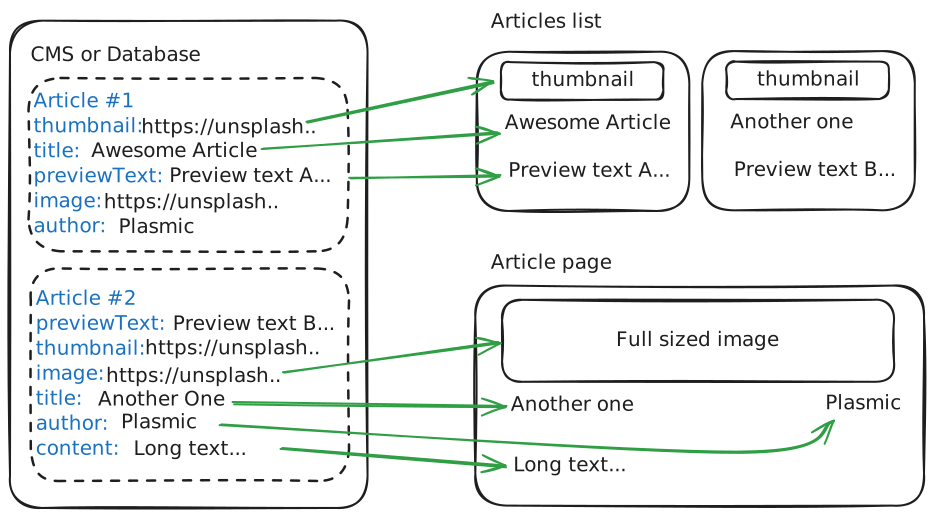
In this case, Plasmic can be used to create the template for the listing pages and the individual blog post page, while the content for the blog posts can live in the CMS.
Testimonials
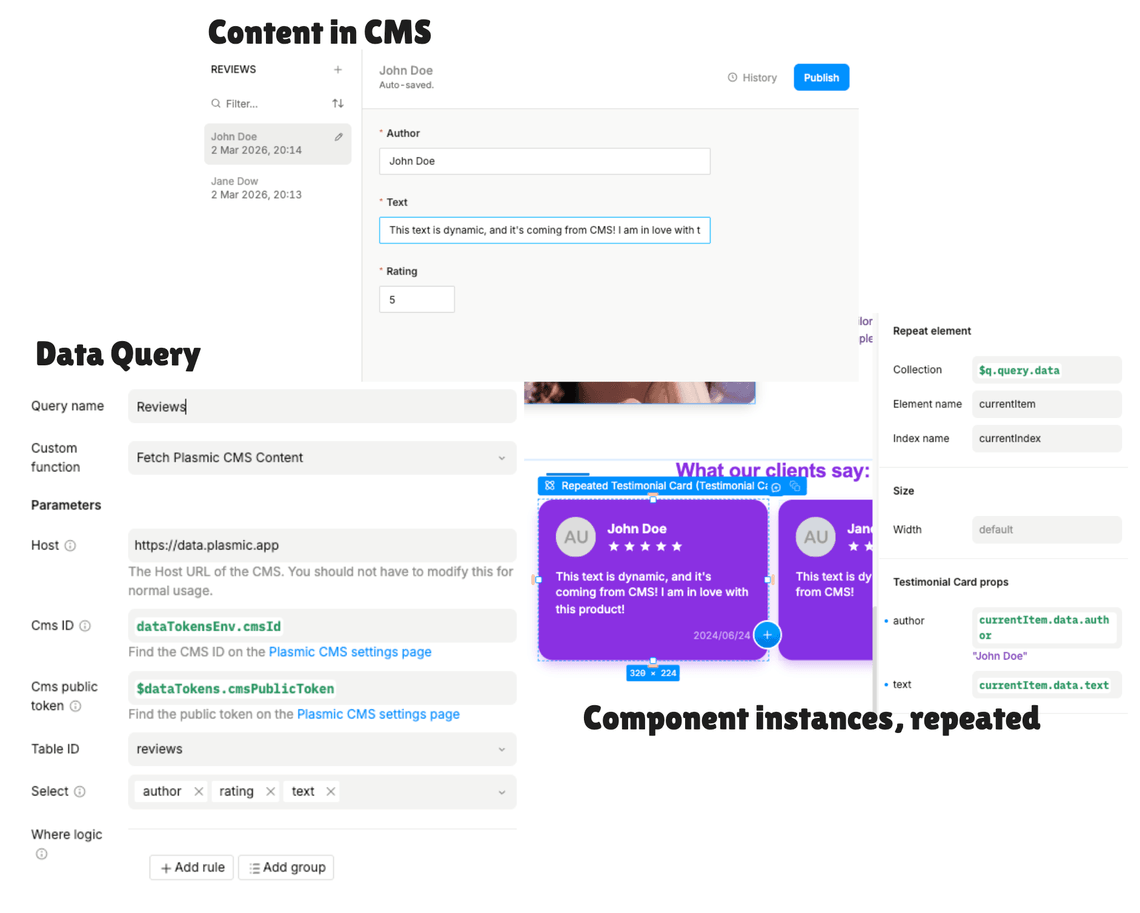
What about reviews on your blog, or an e-commerce website?
If you need to display 2-3 elements solely on your homepage, then it might be enough to store the content directly in Plasmic, without needing to set up an integration with a separate data source.
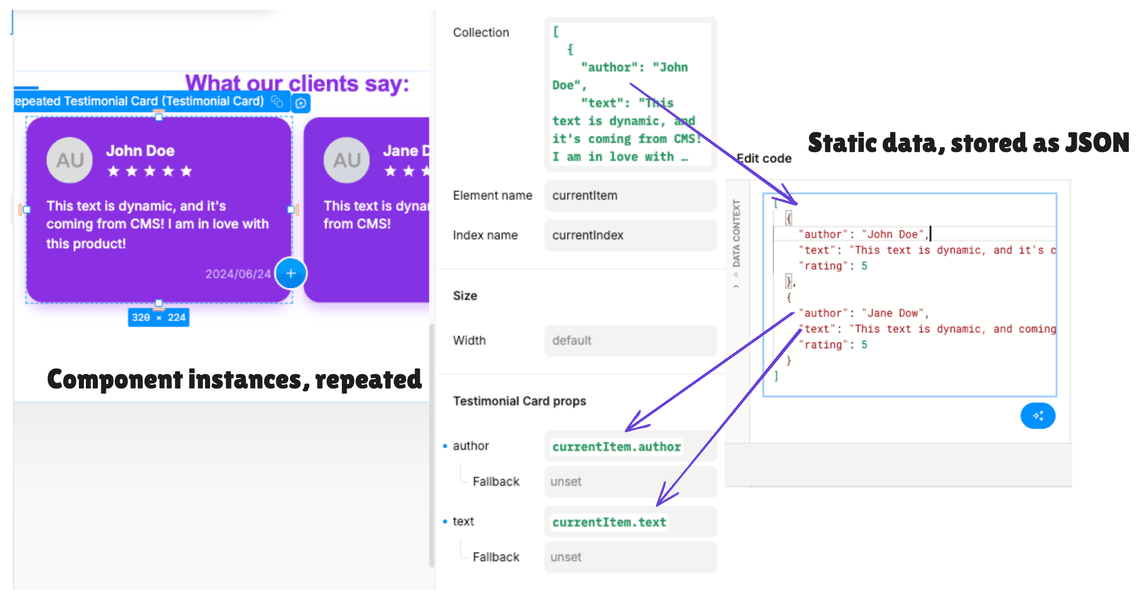
You can either save the content as JSON in the Repeated element collection field:
Or set the content directly in the props or slots for each element separately:
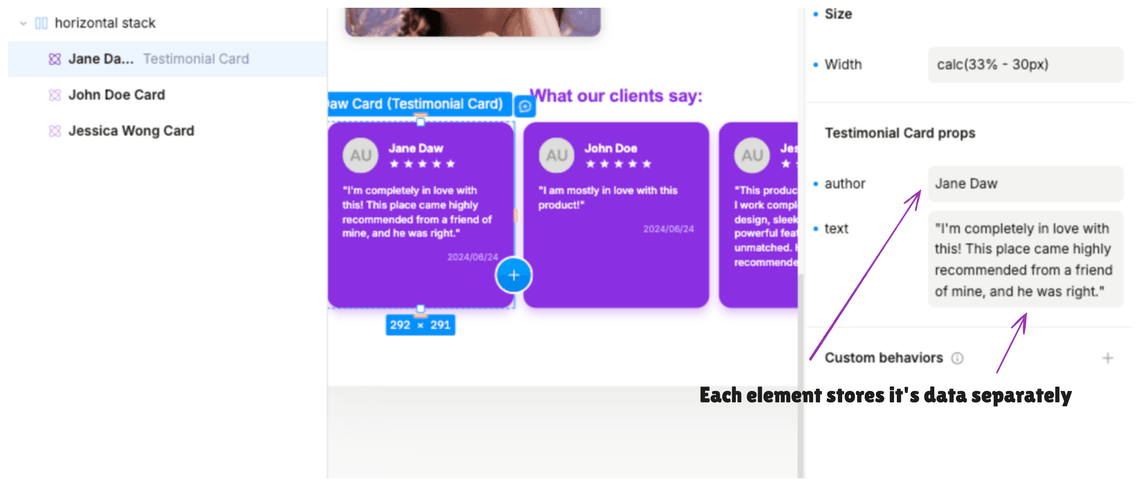
Even if you need to display the testimonials on multiple landing pages, and the testimonials need to look a bit different on each page, you can simply use Plasmic components (and variants) to do so. Components let you define a schema for the properties, content slots, as well as display the content in different variations.
However, if you need to dynamically query/filter to different subsets of testimonials on different pages, then you should store them in a separate data source (such as a CMS) and use the techniques described above.
Supported data sources
Currently, the following built-in data sources are available:
If you are a developer, and you don’t see the data source you need, you can always create your own integration using:
- Custom code queries, written in Plasmic Studio
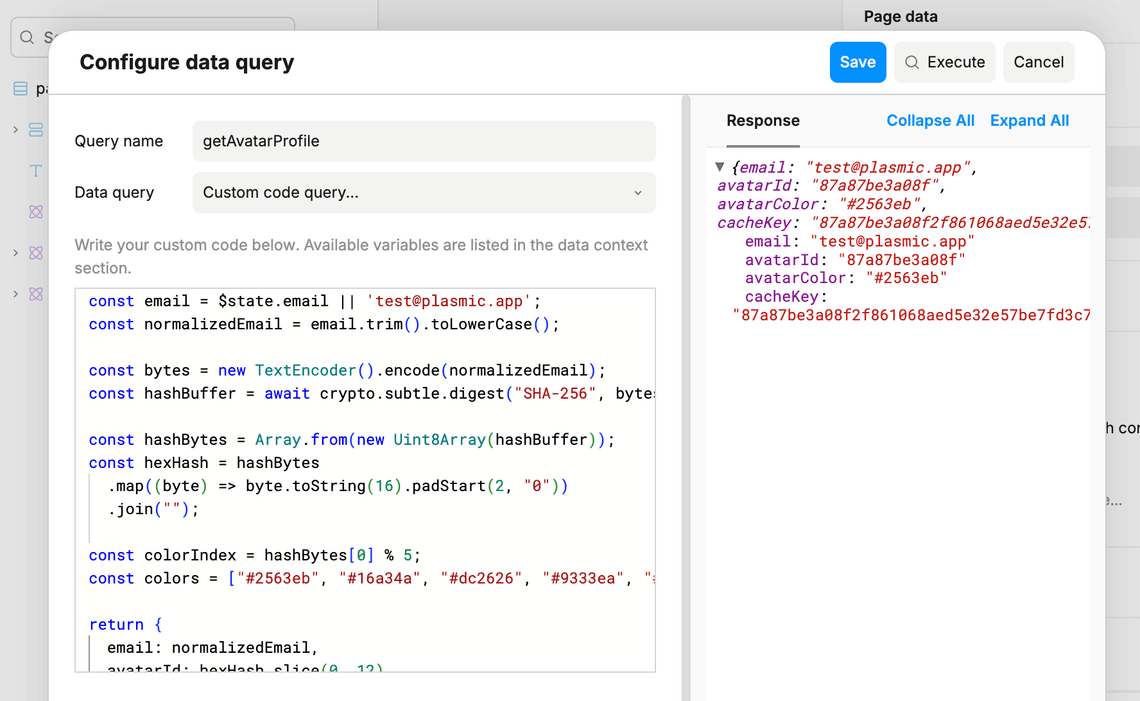
- Custom data queries, registered in code. Feel free to submit your custom code queries to the Plasmic repo for you and others to use them natively!
- Data-fetching code component
Getting started
Generally, your workflow with any data source will look like this:
- Add a data query to any page or component to fetch the data from your data source.
- Connect the data from query results to the elements in your design using dynamic values.
Let’s go through the steps in more detail.
How to create a data query?
Data queries fetch data from the data source. They exist on a page level or on a component level. When a page or component is loaded, all its data queries will be fetched automatically.
To create a data query:
- Go to Page (or Component) Data tab in the right sidebar
- Click the ”+” button next to “Data queries”
- Then click into newly created row to configure the query
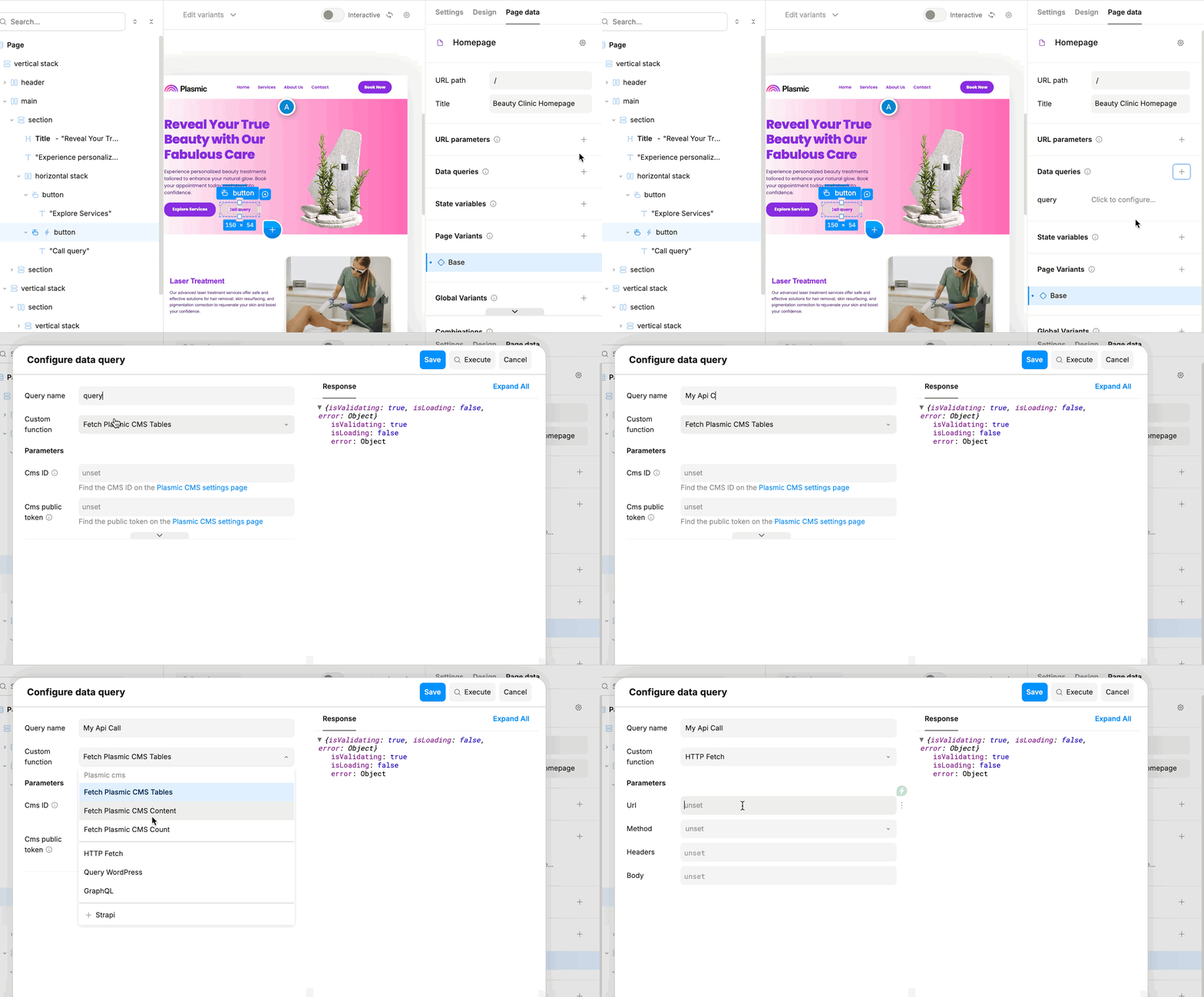
The configuration will depend on the data source you are using. Read more about configuring data queries for each specific data source, all the links are listed in the Supported data sources section.
Using fetched data
On the same page or component as the data query, you’ll be able to use the results of the data query in dynamic values.
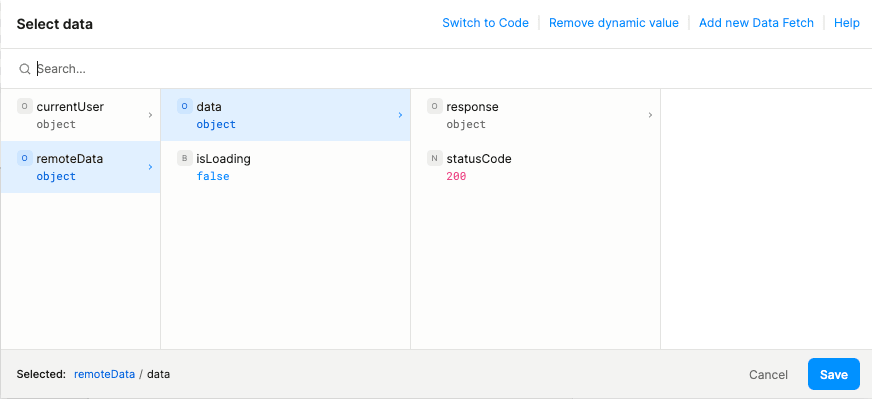
In the above screenshot,
datacontains the results of the data query. While the data query is still running,datawill not be set, so your dynamic value will usually evaluate to its fallback value. The structure ofdatadepends on the data source and operation.isLoadingtells you whether the data query is still loading or not. Use this to conditionally show loading UI.
In a code expression, the results of data queries are available on the special $q object.
For example, if you have a data query named “GetPosts”, you can access its results with $q.GetPosts.data and pass it as a prop to any other element on the page, or any element that is nested into the component that contains the query.
Triggering data queries on interactions
Sometimes your data source might support operations that are not just fetching data, but also creating/updating/deleting data, or triggering some action. In this case, you can use the data query on interactions.
“Writing” operations are supported only for HTTP and GraphQL for now. To use them with other data sources you would need to register custom data queries in the code.
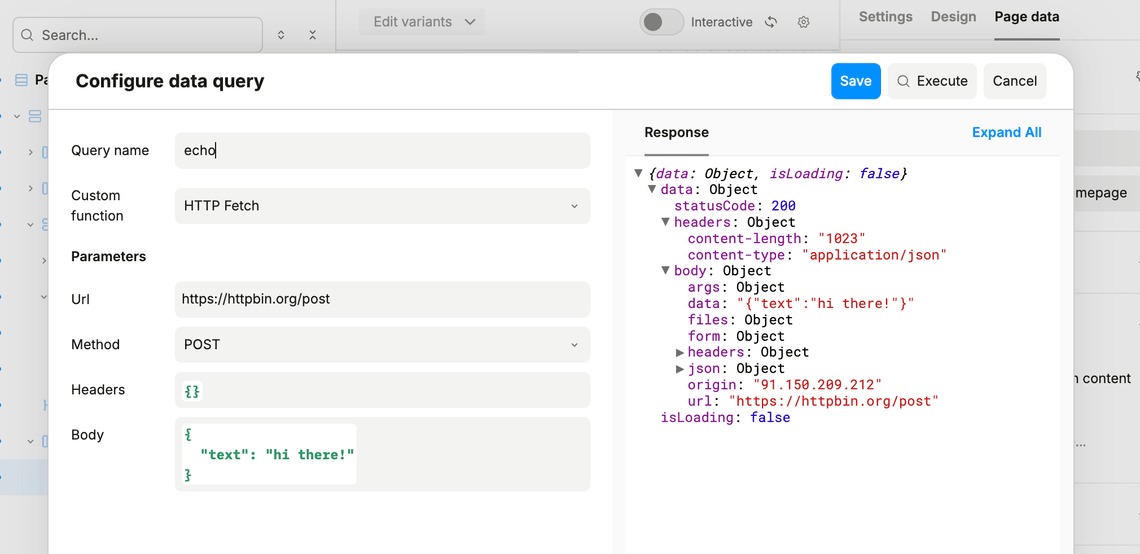
You can set up your operations in the same way as you set up data queries, and then use them inside interactions:
- Create a button to trigger the action, and an interaction with action Use data query.
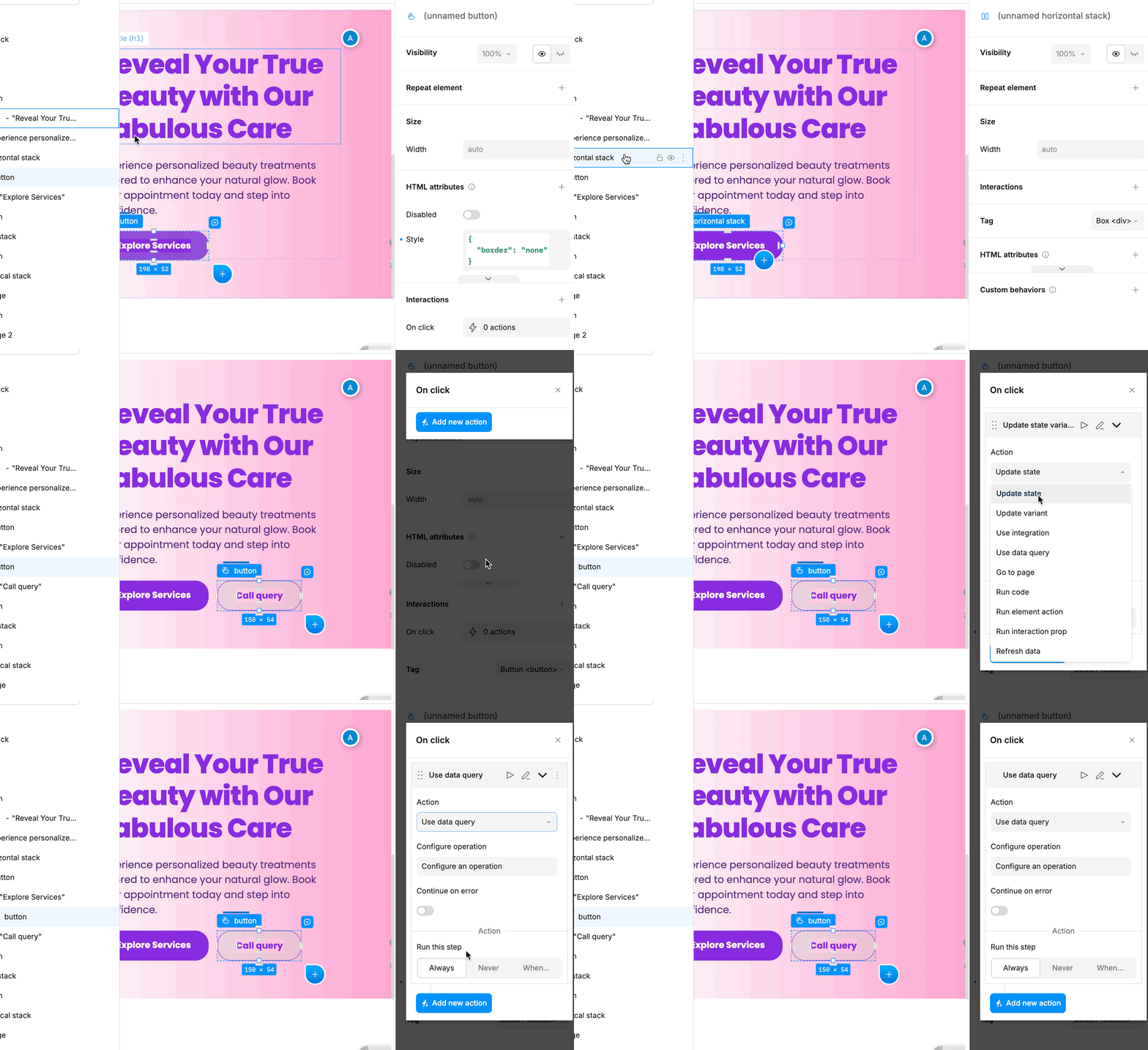
- Then, click the “Configure an operation”, and configure a data query to have a simple body which will contain
{ "text": "Hi there!" }, methodPOST, and endpointhttps://httpbin.org/post