Data tokens
Data tokens allow you to define reusable text, numbers, and code expressions that can be used throughout your Plasmic project. Similar to how style tokens let you maintain consistent colors and spacing, data tokens help you centralize and reuse data values and logic.
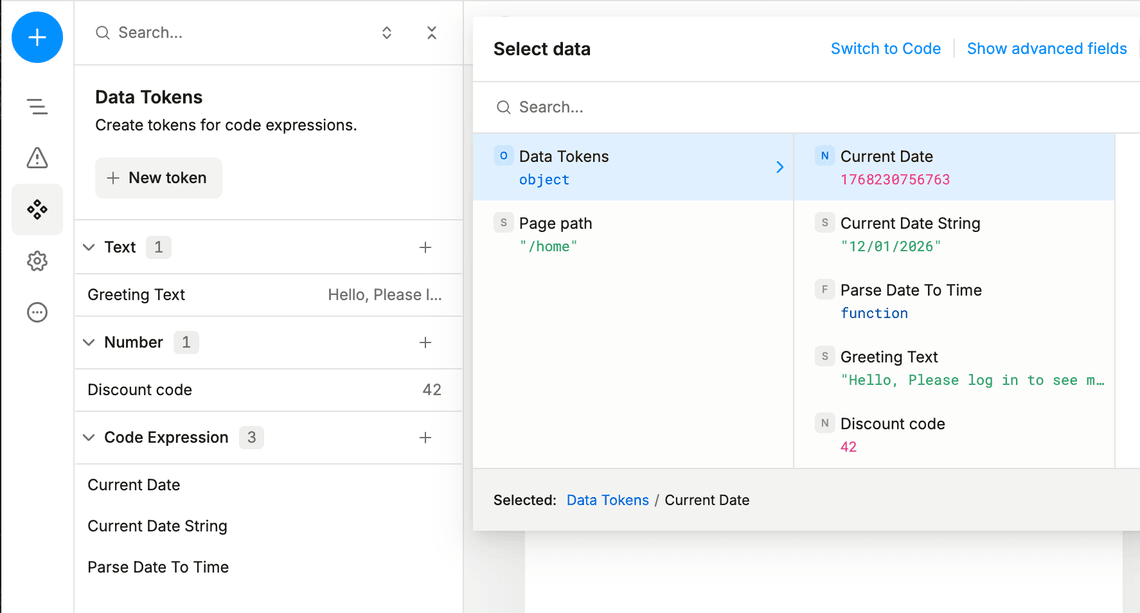
You can create and manage data tokens from the Assets panel in the left sidebar, under the Data Tokens tab. Each data token has a name and a value, which can be:
- Text — A text value like
"Welcome to our store"or"USD" - Number — A numeric value like
100,0.15, or3.14159 - Code expression — A JavaScript expression that can perform calculations, format data, or define reusable functions
Once created, data tokens are available anywhere you can use dynamic values — in text content, element properties, visibility conditions, and more. Access them using the $dataTokens prefix in code expressions, like $dataTokens.welcomeMessage or $dataTokens.formatCurrency(1299).
Use cases
Data tokens are useful for centralizing values and logic that you want to reuse across your project:
- Constants and configuration — Store values like tax rates, discount percentages, API endpoints, or feature flags in one place so you can update them globally
- Formatting functions — Create reusable functions for formatting currencies, dates, phone numbers, or other data types consistently throughout your app
- Text content — Centralize common text like button labels, error messages, or marketing copy for easier maintenance
- Computed values — Define expressions that calculate values based on other data, such as price thresholds or dynamic labels
- Business logic — Encapsulate validation rules, calculation formulas, or transformation logic that multiple components need
- Referral and discount codes — Store referral and discount codes as data tokens for easier management and reuse
Example 1: storing referral code as a data token
First, let’s start with something simple: a data token that stores referral code, which you can then use anywhere in your project.
Here’s how you can do it:
- Open the Assets panel in the left sidebar
- Navigate to the Data Tokens tab
- Click the + New Token button to create a new data token
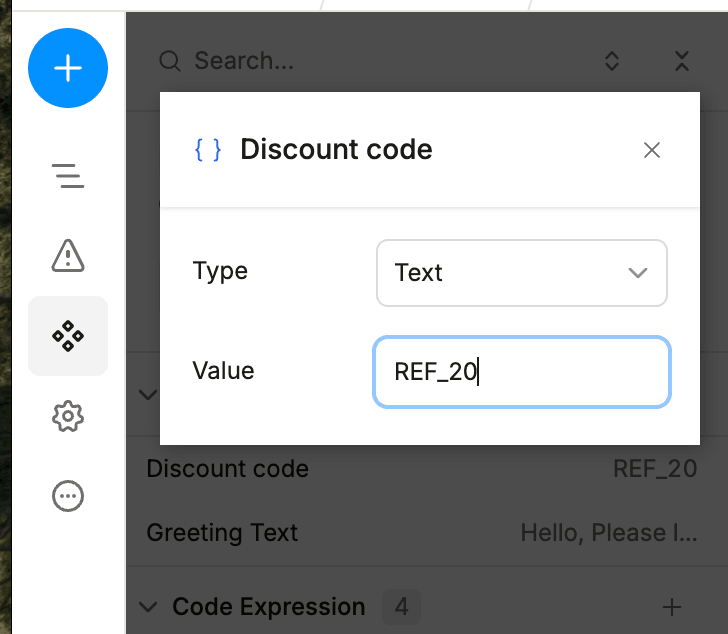
- Name it
Discount Code - Set the type to Text
- Enter the following text:
"REF_20"
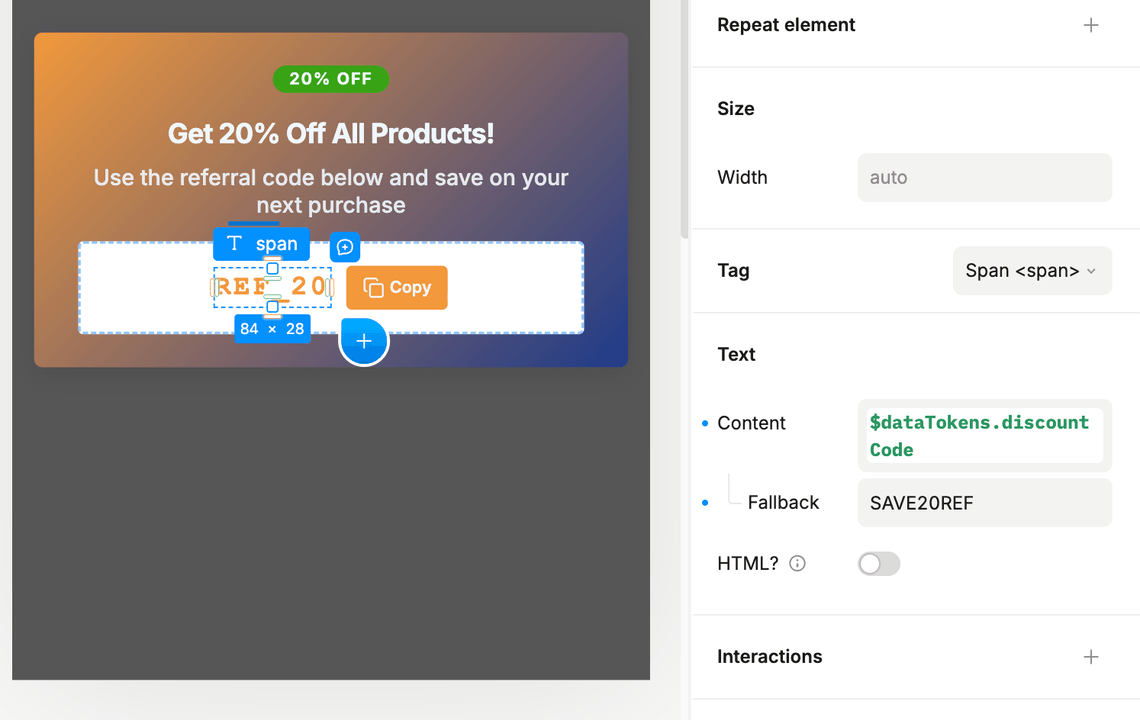
Now you can use this data token anywhere in your project. Let’s display it in a banner so that users can see it:
- Select a text element
- Right-click and choose Use dynamic value
- Click Switch to Code
- Enter:
$dataTokens.discountCode
Example 2: creating a reusable currency formatting function
Let’s walk through creating a data token that formats numbers as currency, which you can then use anywhere in your project.
Step 1: Create the data token
- Open the Assets panel in the left sidebar
- Navigate to the Data Tokens tab
- Click the + New Token button to create a new data token
- Name it
formatCurrency - Set the type to Code expression
- Enter the following code:
(amount, currency = 'USD') => {return new Intl.NumberFormat('en-US', {style: 'currency',currency: currency}).format(amount / 100);};
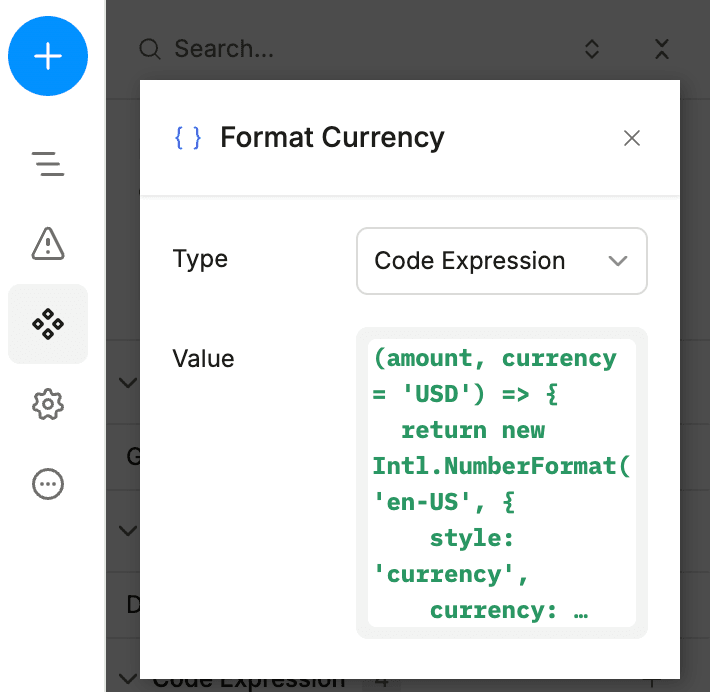
This function takes an amount in cents and an optional currency code, then returns a formatted currency string like "$12.99".
Step 2: Use the data token
Now you can use this formatting function anywhere in your project. For example, to display a product price:
- Select a text element
- Right-click and choose Use dynamic value
- Click Switch to Code
- Enter:
$dataTokens.formatCurrency(productPrice)
If your product price is stored as 1299 (cents), this will display as $12.99.
You can also use it with different currencies:
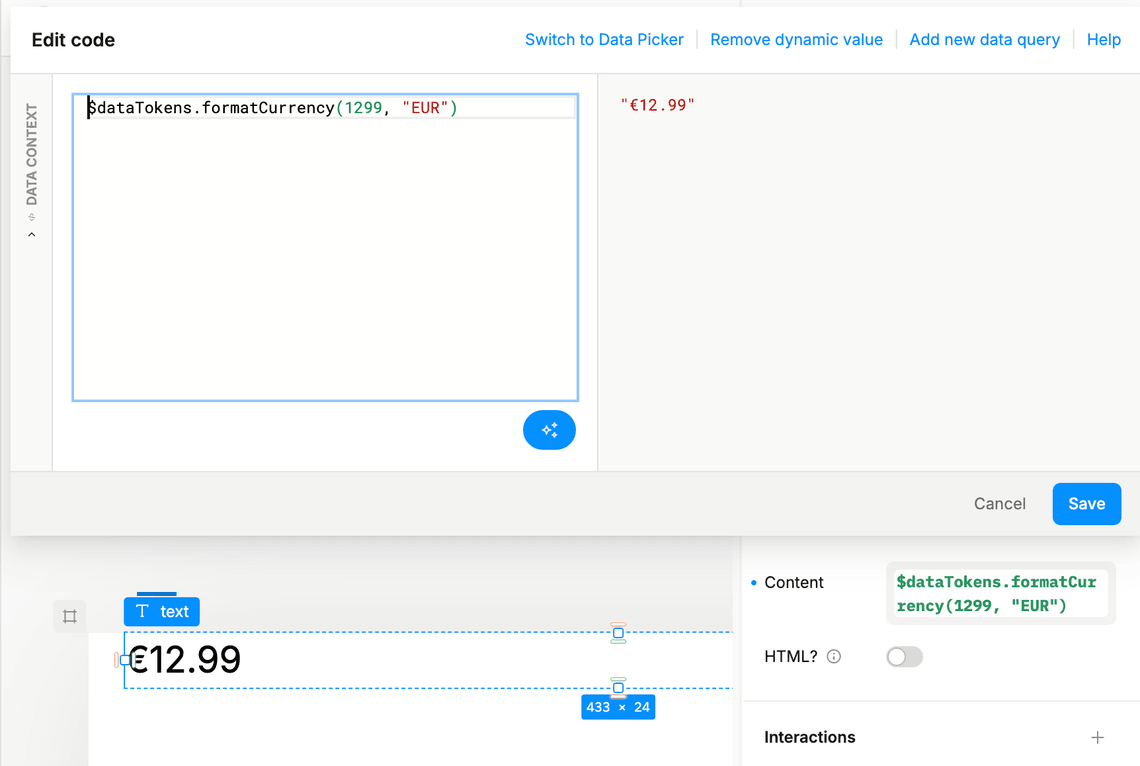
$dataTokens.formatCurrency(1299, 'EUR'); // "€12.99"$dataTokens.formatCurrency(1299, 'GBP'); // "£12.99"